Create Preserve Pairs
Use this guide to create preserve pairs -- the connections that tell the solver how input forces should produce output motion. A pair couples one input preserve to one output preserve and defines the mechanical relationship between them.
Why pairs matter
The solver does not automatically link inputs to outputs. You must explicitly create pairs to define which input drives which output. Without pairs, the solver has no coupling information and cannot formulate the optimization objective for compliant mechanism design.
Each pair can also carry its own stiffness constraint (K_p_max), which controls the trade-off between output displacement and output force for that specific input-output coupling.
Steps
1. Verify prerequisites
Before creating a pair, ensure you have:
- At least one input preserve
- At least one output preserve
- Both preserves linked to the current analysis (they appear in the sidebar sections)
2. Create the pair
In the sidebar, locate the Pairs section. Click the Add Pair button.
A new pair object is created. It appears in the sidebar with a default name like "Pair 1".
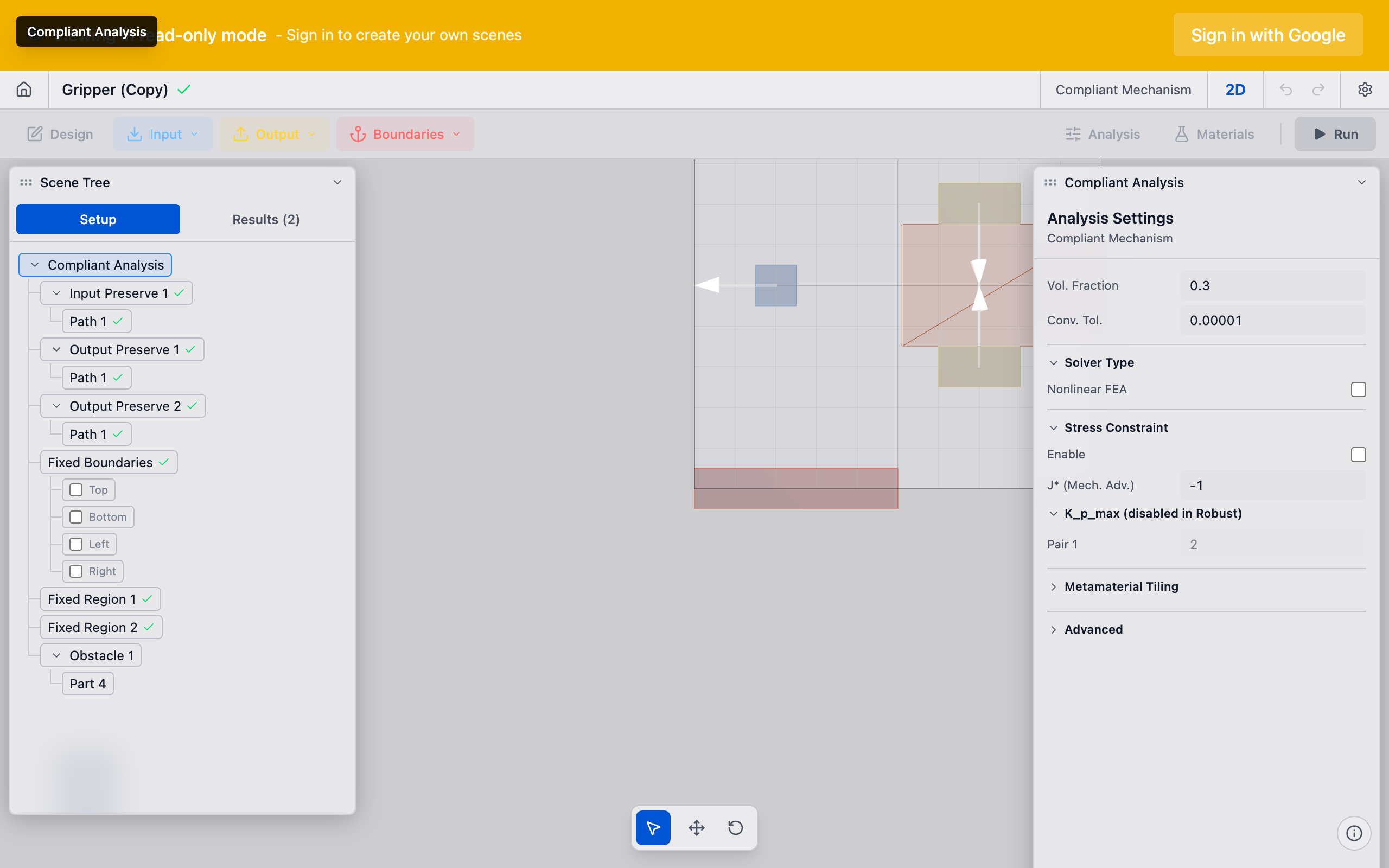
3. Link input and output
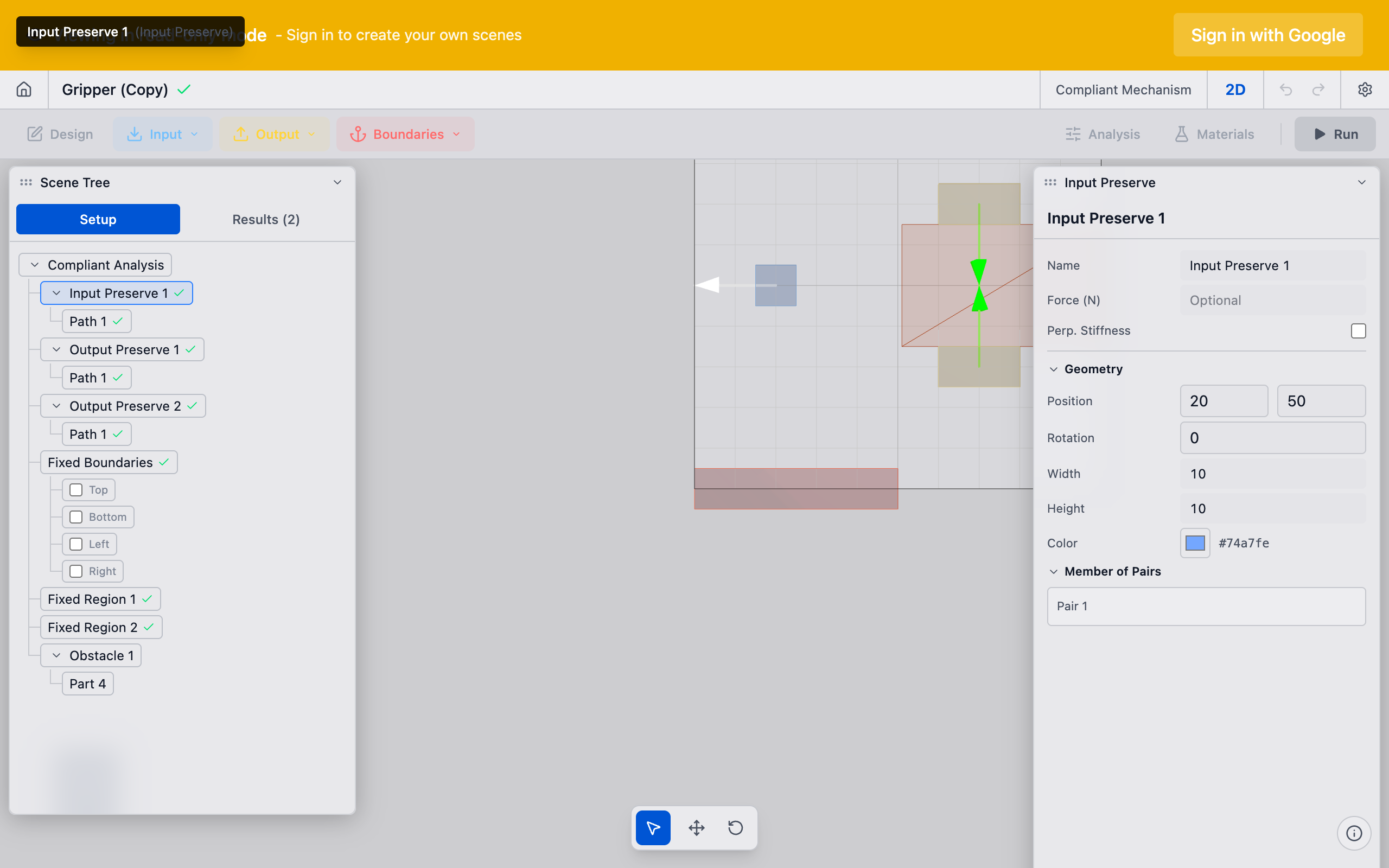
Select the pair in the sidebar. The Properties panel shows checkbox lists for inputs and outputs:
- Inputs: A multi-select checkbox list of all available input preserves. Check the inputs you want this pair to include.
- Outputs Affected: A multi-select checkbox list of all available output preserves. Check the outputs you want this pair to drive.
Check the specific inputs and outputs you want to couple. A single pair can link multiple inputs to multiple outputs.
4. Set stiffness constraint (optional)
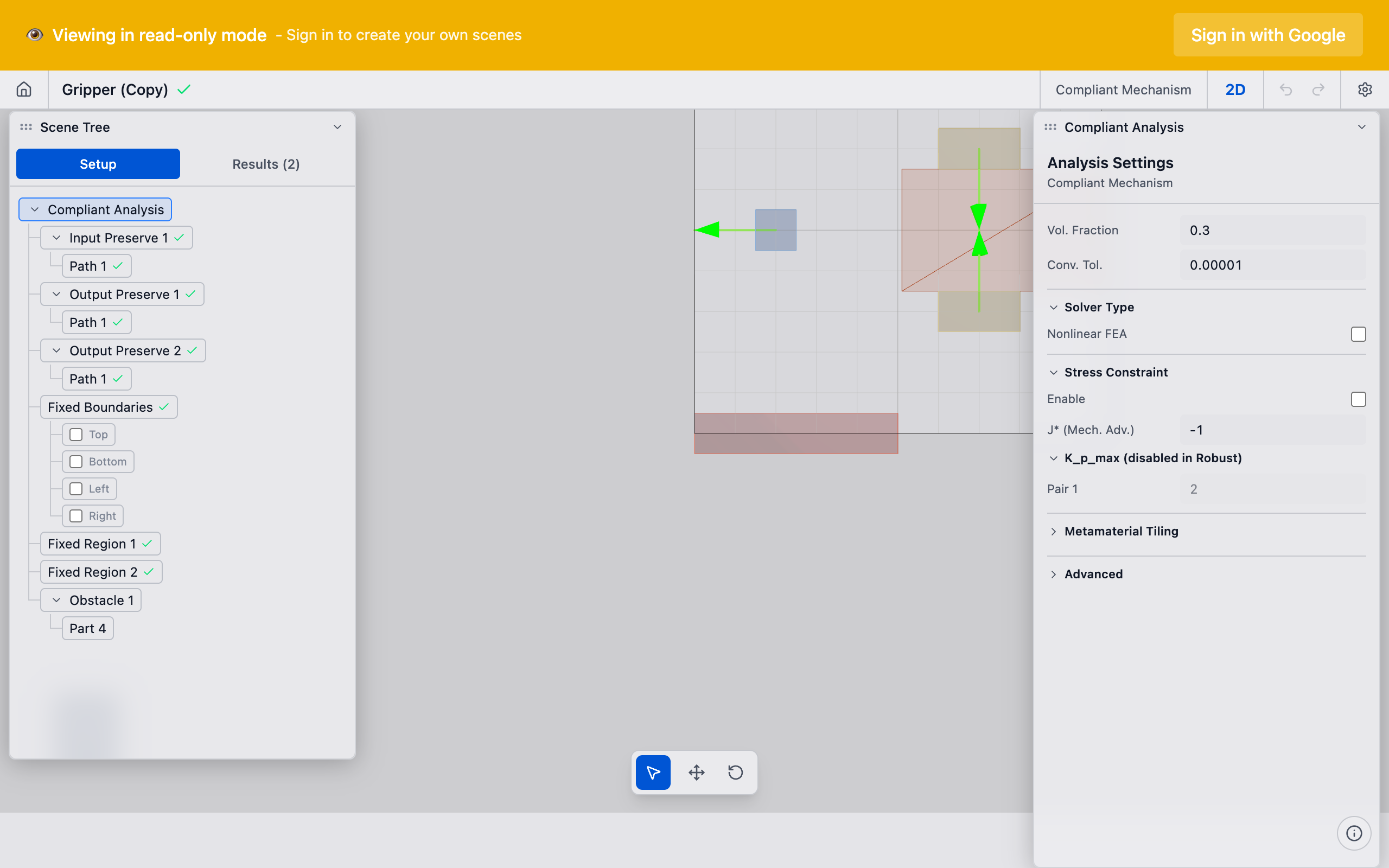
The Max Characteristic Stiffness (K_p_max) controls the solver's trade-off:
- Low K_p_max (e.g., 1--5): The solver prioritizes output displacement. The mechanism will move freely at the output but may not push hard against a load.
- High K_p_max (e.g., 50--100): The solver prioritizes output force. The mechanism will be stiffer at the output, generating more force but less displacement.
- Very high K_p_max (e.g., 1e20): Effectively disables the stiffness constraint. Used in Decoupled Thermal Flexure analyses where structural performance is the objective.
The default is 10.0. Adjust based on whether your application needs displacement (motion) or force (pushing/gripping).
In Robust formulation mode, K_p_max is not used. The solver uses a different objective formulation that does not require an explicit stiffness bound. K_p_max fields are grayed out when Robust mode is selected.
5. Add more pairs (multi-input/output)
For mechanisms with multiple input-output relationships, create additional pairs. Each pair independently couples one input to one output:
- Force inverter with two inputs: Create two pairs, each linking a different input to the same output.
- Multi-output mechanism: Create pairs linking the same input to different outputs.
6. Verify in the sidebar
The Pairs section lists all pairs with their linked preserves. Confirm each pair references the correct inputs and outputs.
Tips
- One pair minimum: The solver requires at least one pair for compliant mechanism analysis. Without it, the optimization problem is incomplete.
- Pair per bolt (thermal flexure): For thermal flexure analyses, you typically create one pair per input bolt pad, all pointing to the same output preserve. The solver optimizes the topology to minimize output displacement from all thermal inputs simultaneously.
- Stiffness constraint per pair: Different pairs can have different K_p_max values. This is useful when some input-output couplings need to be stiffer than others.
- Formulation mode: The formulation mode (Robust vs. Nuanced) in Analysis Settings affects how pairs are used. Nuanced mode uses K_p_max; Robust mode does not.
What to do next
- Configure volume fraction to set the material budget
- Choose mesh resolution for the optimization grid
- Run the analysis to start the solver