Choose Mesh Resolution
Use this guide to set the mesh resolution for your optimization. The mesh resolution determines the level of geometric detail the solver can produce and directly affects computation time.
How mesh resolution works
deFlex meshes the design domain with a regular grid of square elements (2D) or hexahedral elements (3D). You control the resolution through the Element Size parameter, which sets the side length of each element in millimeters. The resulting grid size is computed automatically:
Elements in X = Domain Width / Element Size
Elements in Y = Domain Height / Element Size
For example, a 100 x 100 mm domain with a 2.0 mm element size produces a 50 x 50 grid (2,500 elements).
Steps
1. Open Design Settings
Click the Design button in the toolbar to open the Design Settings panel.
2. Set the element size
Adjust the Element Size field in the Design Settings panel. The value is in millimeters and represents the side length of each mesh element.
| Element Size | Typical grid (100x100 mm) | Speed | Detail |
|---|---|---|---|
| 4.0 mm | 25 x 25 (625 elements) | Very fast | Coarse, good for quick exploration |
| 2.0 mm | 50 x 50 (2,500 elements) | Fast | Default, good balance |
| 1.0 mm | 100 x 100 (10,000 elements) | Moderate | Fine detail, good for final designs |
| 0.5 mm | 200 x 200 (40,000 elements) | Slow | Very fine, use for publication-quality results |
The default is 2.0 mm.
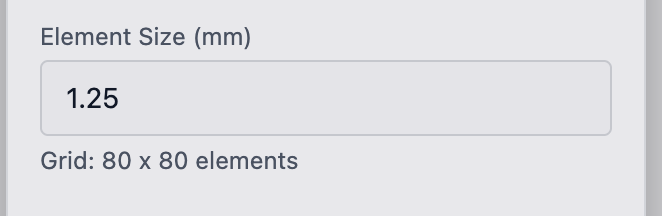
3. Check the grid readout
The Grid field shows the resulting element count (e.g., "50 x 50 elements"). Use this to estimate computation time:
- Under 5,000 elements: seconds per iteration
- 5,000--20,000 elements: 1--5 seconds per iteration
- 20,000--100,000 elements: 5--30 seconds per iteration
- Over 100,000 elements: minutes per iteration
With 60 iterations (the default), a 50x50 grid completes in under a minute. A 200x200 grid may take 10--30 minutes.

4. Adjust iterations if needed
The Iterations field in the Design Settings panel controls the maximum number of optimization steps. The default is 60. Finer meshes sometimes benefit from more iterations (80--100) to fully converge.
For coarse exploration meshes, 30--40 iterations may be sufficient.
Choosing the right resolution
Start coarse, refine later. Run your first optimization at 2.0--4.0 mm element size to validate the problem setup. Once you are confident in the preserves, boundary conditions, and volume fraction, decrease the element size for a final high-resolution run.
Minimum feature size
The element size sets the minimum feature the solver can produce. A 2.0 mm element size means the thinnest structural member in the result will be approximately 2--4 mm wide (one to two elements). If your manufacturing process requires thicker features, you may need to:
- Use a larger element size
- Increase the Filter Radius in Analysis Settings (default: 1.5x element size) to enforce wider minimum members
- Post-process the result in your CAD tool to thicken thin members
Resolution vs. domain size
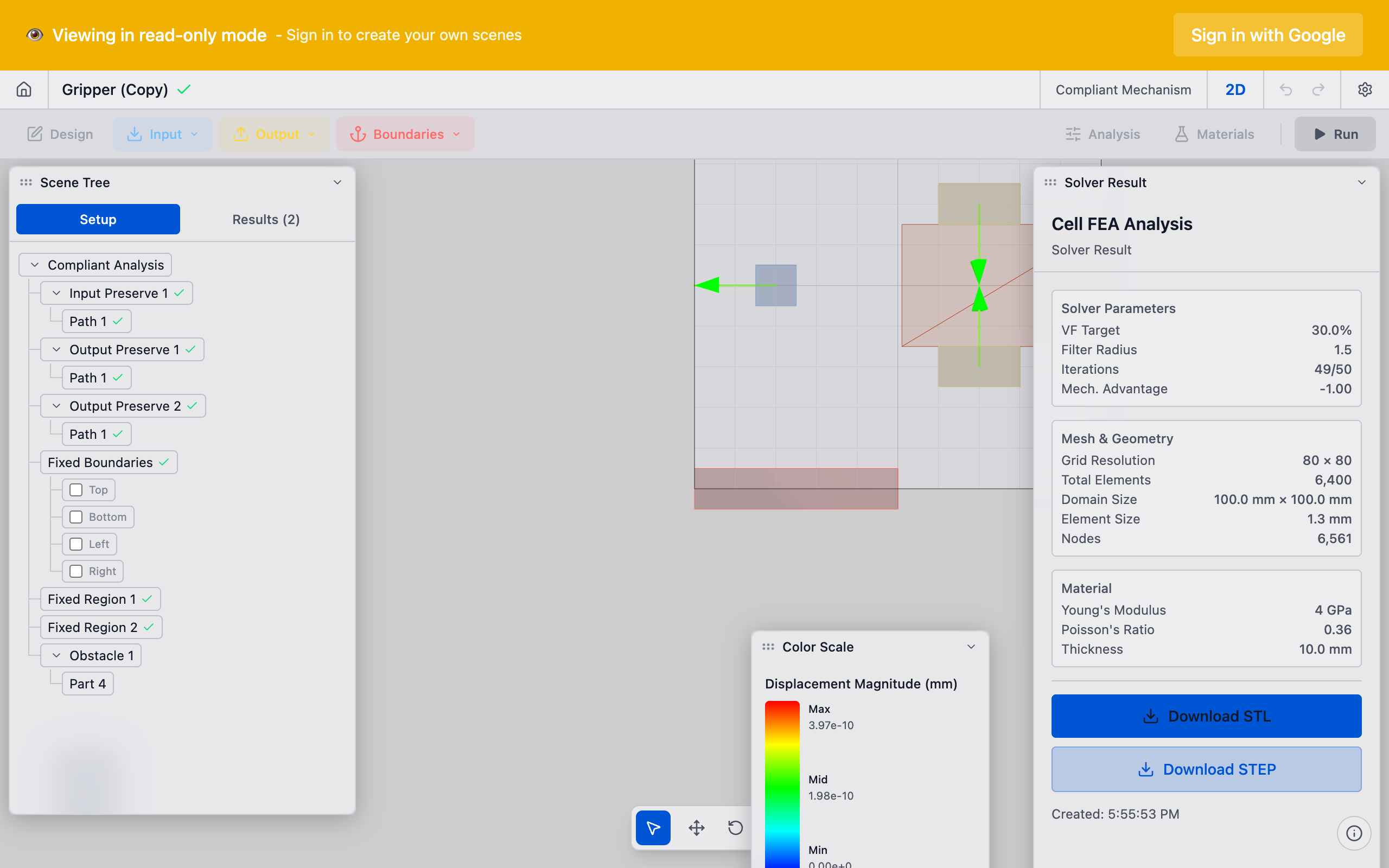
For large domains, keep the total element count under 100,000 for interactive use. A 300 x 300 mm plate at 1.0 mm element size produces 90,000 elements -- workable but slow. At 0.5 mm, that becomes 360,000 elements, which will take a long time.
Tips
- Thickness (2D only): The Thickness field in Design Settings sets the out-of-plane thickness for 2D analyses. This does not affect mesh resolution but does affect stiffness calculations. Set it to match your physical plate thickness.
- 3D meshes: For 3D analyses, the element count grows cubically with resolution. A 50x50x25 grid is 62,500 elements. Be conservative with 3D element sizes.
- Filter radius interaction: The filter radius (in Analysis Settings > Advanced) is specified in multiples of the element size. A filter radius of 1.5 at 2.0 mm element size gives a 3.0 mm minimum feature size. If you change the element size, the effective minimum feature size changes proportionally.
- Convergence check: After running, check the convergence plot. If compliance is still changing significantly at the final iteration, either increase the iteration count or increase the convergence tolerance.
What to do next
- Configure volume fraction if you have not already
- Run the analysis to start the optimization
- Interpret results to evaluate the solver output